
Get-DiscoveredAppsAllDevices
Get-DiscoveredAppsAllDevices

Managing a fleet of devices in a modern enterprise feels a lot like trying to herd cats. Everyone’s got something installed that they shouldn’t, some machines are three browser versions behind, and when someone asks for a software inventory, the data exists in Intune but isn’t easy to bring together in one clear view.
Here is a PowerShell script that talks to the Microsoft Graph API, pulls every discovered app across your entire tenant, and wraps it all up in a clean, multi-sheet Excel workbook. No more manual exports. No more copy-paste marathons.
The script is available on GitHub: Get-DiscoveredAppsAllDevices
What It Actually Does
It authenticates to Microsoft Graph, sweeps your Intune tenant discovered applications, and organizes everything into output files that managers can actually read.
By default you get a formatted Excel workbook: Intune_Software_Inventory.xlsx. If you’d rather have raw data to feed into something else, there’s a switch for that too.
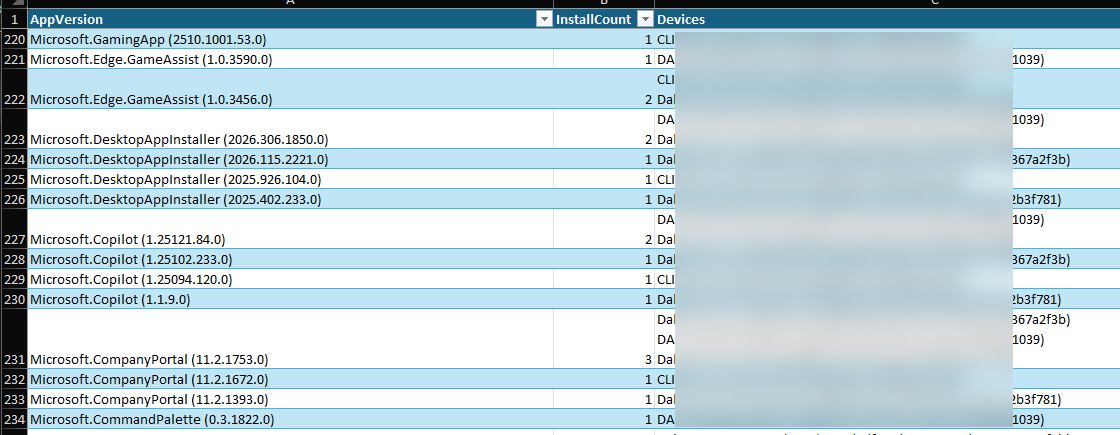
The workbook is split into four worksheets:
- Overview — A high-level dashboard: total discovered apps, total installation records, and any retrieval errors. Good for the “just give me the numbers” crowd.
- Applications — Every unique app name and version found across your fleet, with installation counts. This is where you spot version sprawl fast.
- Installations — The granular view. App name and version mapped to every device it’s installed on, including Device IDs. Wrapped text formatting keeps it readable without manual tweaking.
- Errors — Any apps that couldn’t be fully retrieved are logged here, so you know exactly where to dig if something looks off.
Prerequisites
Before you run anything, you’ll need two PowerShell modules installed:
Install-Module Microsoft.Graph -Scope CurrentUser
Install-Module ImportExcel -Scope CurrentUser
On the permissions side, the script needs these Microsoft Graph API scopes:
DeviceManagementApps.Read.AllDeviceManagementManagedDevices.Read.All
These are read-only — the script never writes anything back to your environment. You’ll need an account with one of the following Azure AD roles to consent to those scopes: Global Administrator, Intune Administrator, or Cloud Device Administrator.
Running the Script (v1.1)
Basic Usage
The simplest invocation pulls everything — all discovered apps across all devices:
.\Get-DiscoveredAppsAllDevices.ps1
The script will prompt you to sign in to Microsoft Graph, collect the data, and drop an Excel file in your current directory.
Filtering by Application Name
New in v1.1, you can pass a -DisplayName parameter to narrow things down. It supports standard PowerShell wildcards, so you’ve got a lot of flexibility:
# Exact match
.\Get-DiscoveredAppsAllDevices.ps1 -DisplayName "Google Chrome"

# Everything starting with "Java"
.\Get-DiscoveredAppsAllDevices.ps1 -DisplayName "Java*"

# Everything with "Office" anywhere in the name
.\Get-DiscoveredAppsAllDevices.ps1 -DisplayName "*Office*"

# Scoped search for a specific tool
.\Get-DiscoveredAppsAllDevices.ps1 -DisplayName "*Adobe Reader*"
Matching is case-insensitive, so don’t stress about capitalization.
Choosing Your Output Format
By default, the script produces an Excel file only. If you need a CSV instead — say, for importing into another tool or feeding a pipeline — use the -CSV switch:
# Excel only (default)
.\Get-DiscoveredAppsAllDevices.ps1 -DisplayName "Chrome*"

# CSV only, no Excel
.\Get-DiscoveredAppsAllDevices.ps1 -DisplayName "Chrome*" -CSV
These two can be combined however you need. The -CSV switch skips Excel generation entirely and gives you Intune_DiscoveredApps_WithDevices.csv in the current directory.
Authentication Troubleshooting
Authentication is the most common place things go sideways, so here’s what to do when it does.
“InteractiveBrowserCredential authentication failed: A window handle must be configured”
This usually happens in certain PowerShell environments that can’t pop open a browser window. The fix is to use device code authentication:
# Disconnect first if you've tried before
Disconnect-MgGraph

# Connect with device code flow
Connect-MgGraph -Scopes "DeviceManagementApps.Read.All","DeviceManagementManagedDevices.Read.All" -UseDeviceCode

# Then run the script normally
.\Get-DiscoveredAppsAllDevices.ps1
You can also try running PowerShell as Administrator, or falling back to Windows PowerShell instead of PowerShell Core/7.
“User canceled authentication” — Just re-run the script and finish the sign-in flow in the browser.
“Authentication needed. Please call Connect-MgGraph” — The session didn’t complete. The script will flag this and give you guidance. Try Disconnect-MgGraph first, then reconnect.
Under the Hood
A few things worth knowing about how the engine works:
Rate limiting and retry logic. The Graph API will throttle you if you hit it too hard. The script handles this automatically with configurable retry logic — up to 5 attempts per call, with exponential backoff between retries. You can tune these at the top of the script:
$maxRetries  = 5
$baseDelayMs = 300
If you’re seeing persistent rate limit issues, bump $baseDelayMs to 500 or 1000.
Memory management. Rather than loading everything into memory at once, the script streams raw data to a CSV first. This keeps the footprint manageable even in large environments.
Excel formatting. The output isn’t just a raw data dump — frozen header rows, auto-sized columns, wrapped text for multi-line content. It’s presentation-ready without any manual formatting on your end.
Performance Heads-Up
For large tenants with thousands of applications and devices, the script can take 30 minutes or more to complete. That’s not a bug — it’s the script being a good API citizen, carefully pacing its requests to avoid getting throttled. Let it run.
If you want to do a quick sanity check before committing to a full run, use the -DisplayName filter to pull a single app first and make sure everything’s authenticating and outputting correctly.
Quick Reference
| Task | Command |
|---|---|
| Full inventory (Excel) | .\Get-DiscoveredAppsAllDevices.ps1 |
| Filter by app name | .\Get-DiscoveredAppsAllDevices.ps1 -DisplayName "Chrome*" |
| CSV output only | .\Get-DiscoveredAppsAllDevices.ps1 -CSV |
| Filtered CSV | .\Get-DiscoveredAppsAllDevices.ps1 -DisplayName "*Java*" -CSV |
| Device code auth | Connect-MgGraph -UseDeviceCode |
The script is up on GitHub, grab it, run it, have fun, it’s free.