
Software Update Content Distribution Fun
Background
I wanted to cover a topic that came up in support recently. The issue revolves around how third-party updates are downloaded to devices and how specific settings affect where that content comes from.
I wrote this article for PMPC a while back, it’s a good primer if you haven’t read it: https://patchmypc.com/blog/windows-update-registry-guide/
That article primarily focused on first-party updates. This one digs into some ConfigMgr settings that cause a lot of confusion around where update content actually comes from. ConfigMgr does a good job of masking the real problem here, with the wrong settings, things technically work… until you scale.
What Happens When the DP Doesn’t Have the Content
Let’s first walk through what happens when the Distribution Point (DP) doesn’t have the content. If you forget to distribute the content, the device will act something like this:
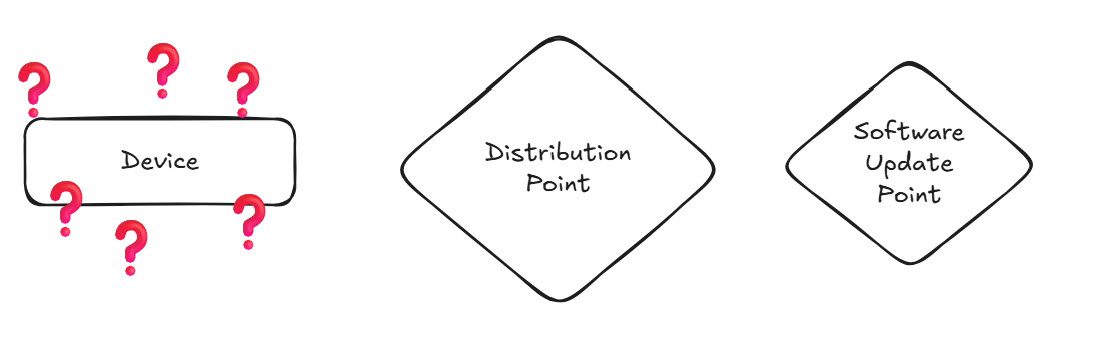
The device has no idea where to get the content. It believes there is an update available, but it can’t locate it and ultimately takes no action.
In the logs, it looks like this:
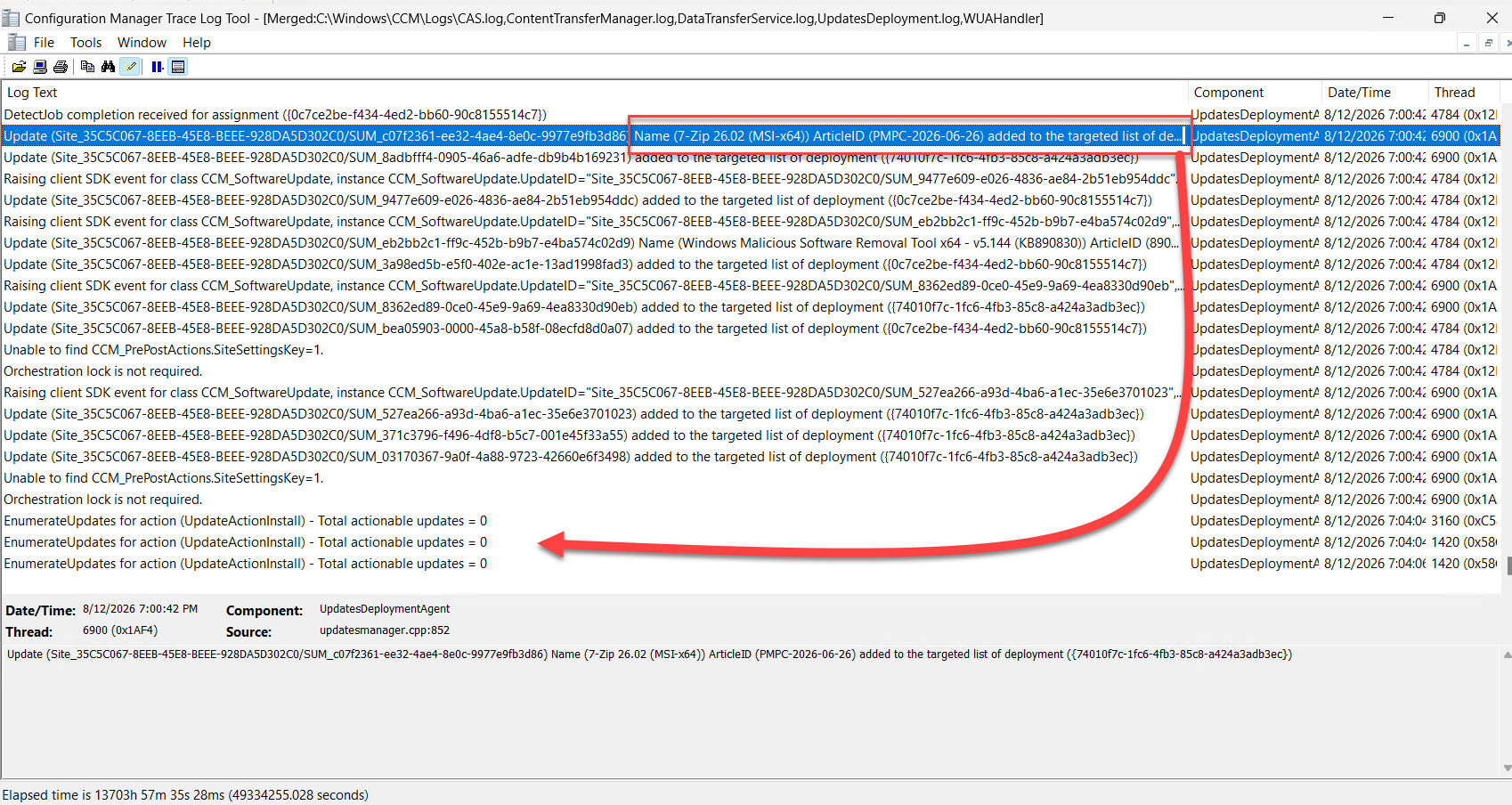
Or likely this:
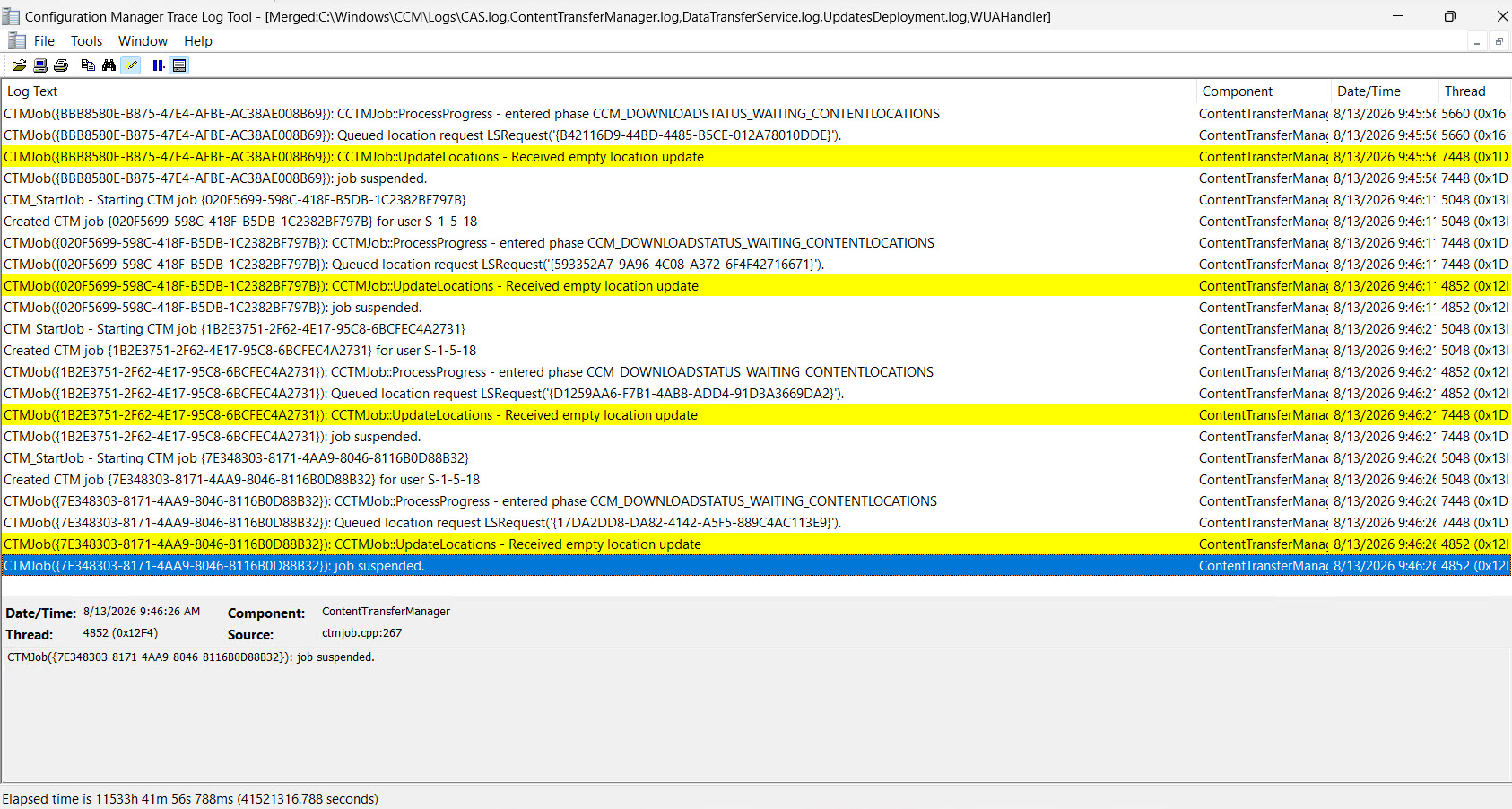
CCTMJob::UpdateLocations - Received empty location update
The “Download from Microsoft Update” Option
Now let’s talk about how a particular option can get you into trouble. The Deployment option under Download Settings > “If software updates are not available on distribution points in current, neighbor, or site boundary groups, download the content from Microsoft Update.” This setting essentially says: “If you can’t find the content on your Distribution Point, go get it from Microsoft Update (the Microsoft catalog online).”
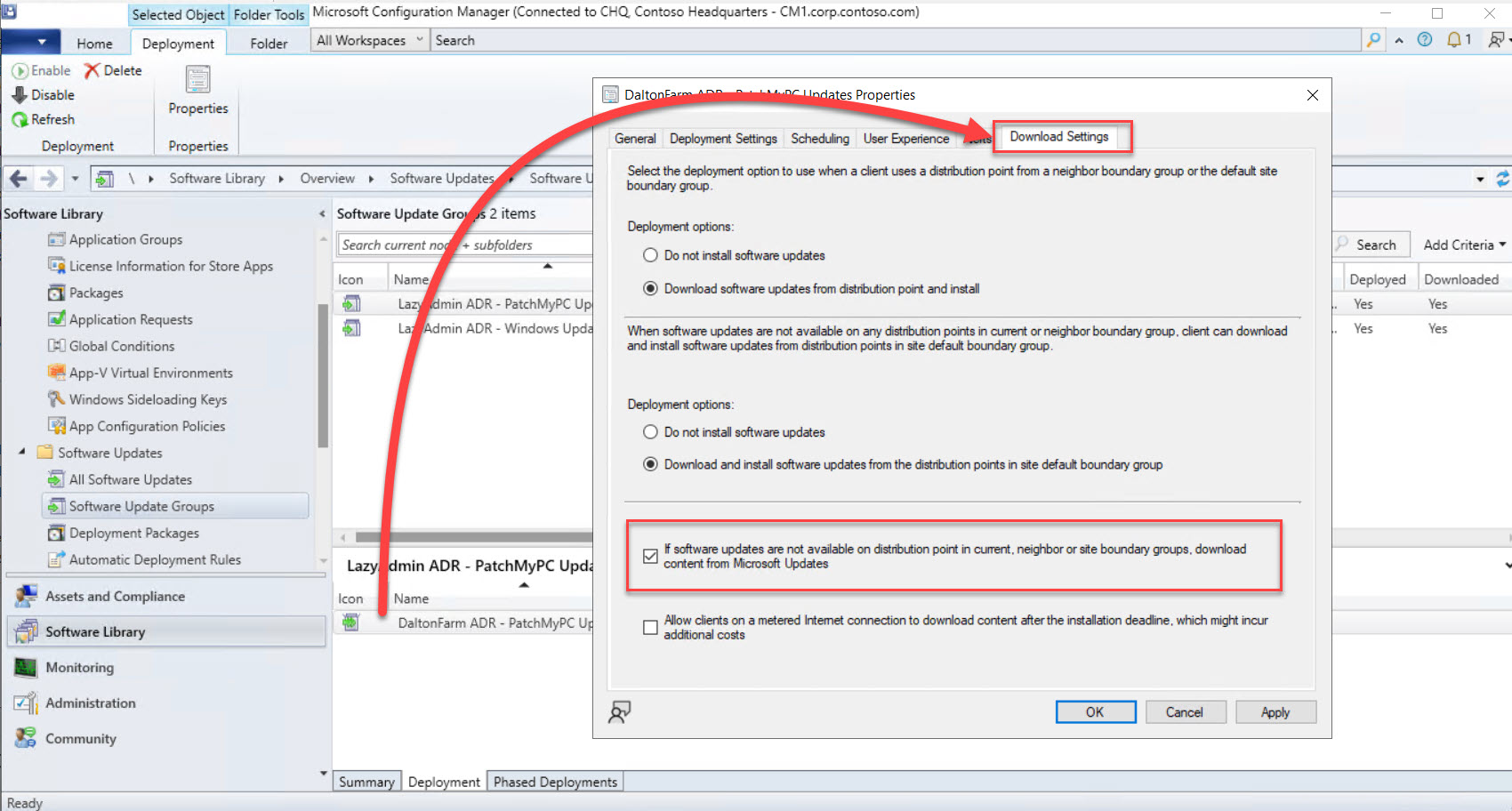
This option is great for Cloud Management Gateway (CMG) scenarios, the device can communicate with the CMG to find its updates and download the content even when it’s off-network with no line of sight to the DP. However, the wording “download the content from Microsoft Update” can be misleading.
What It’s Actually Doing
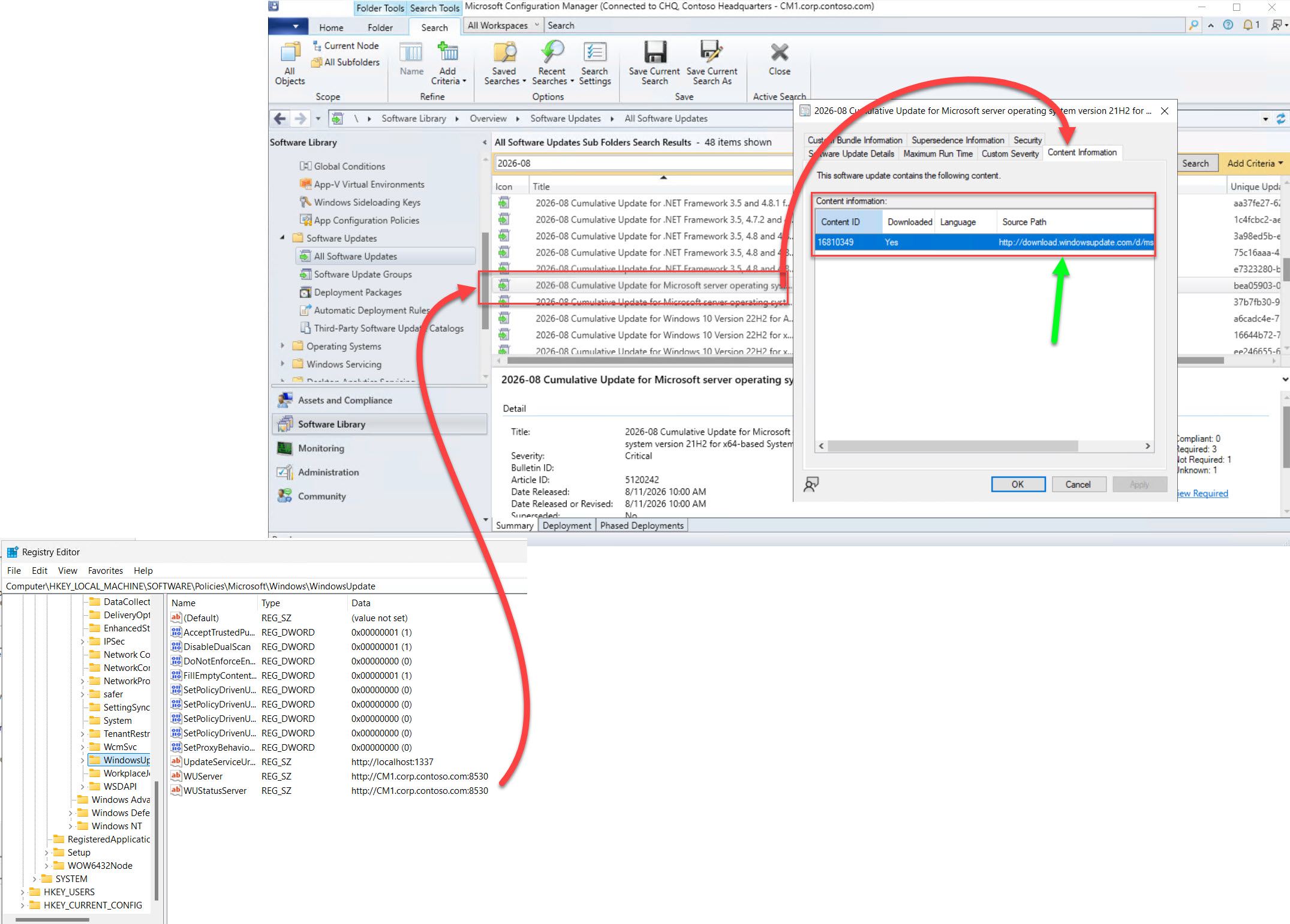
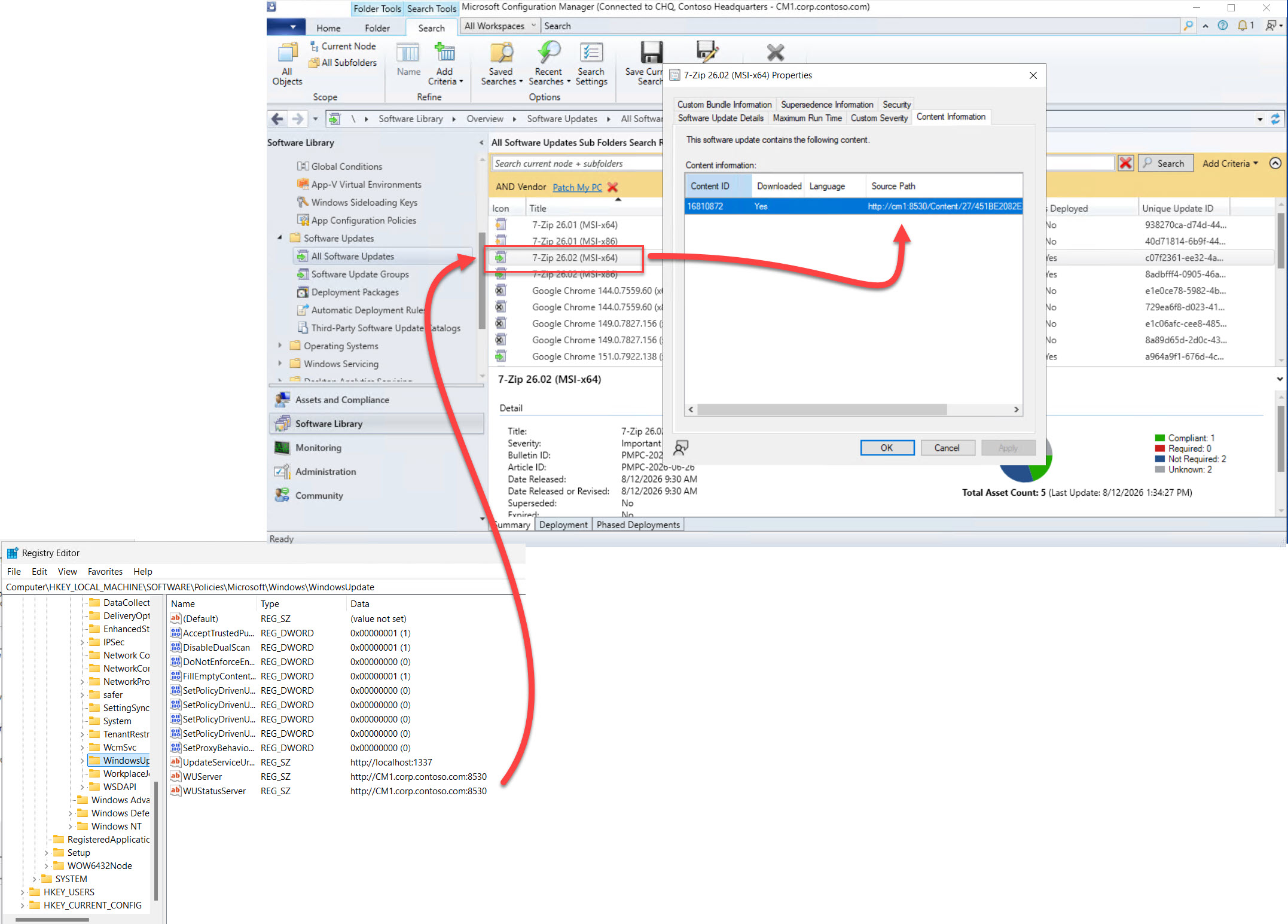
What this setting is really saying is: “Download the content from wherever your %scan source% downloaded it from.” In this case, the scan source is your Software Update Point (SUP) / WSUS.
That’s perfectly fine when the SUP expects you to contact a Microsoft Update URL:
But it’s not fine when the update content lives in IIS, like this 7-Zip update:
How Third-Party Updates Are Published
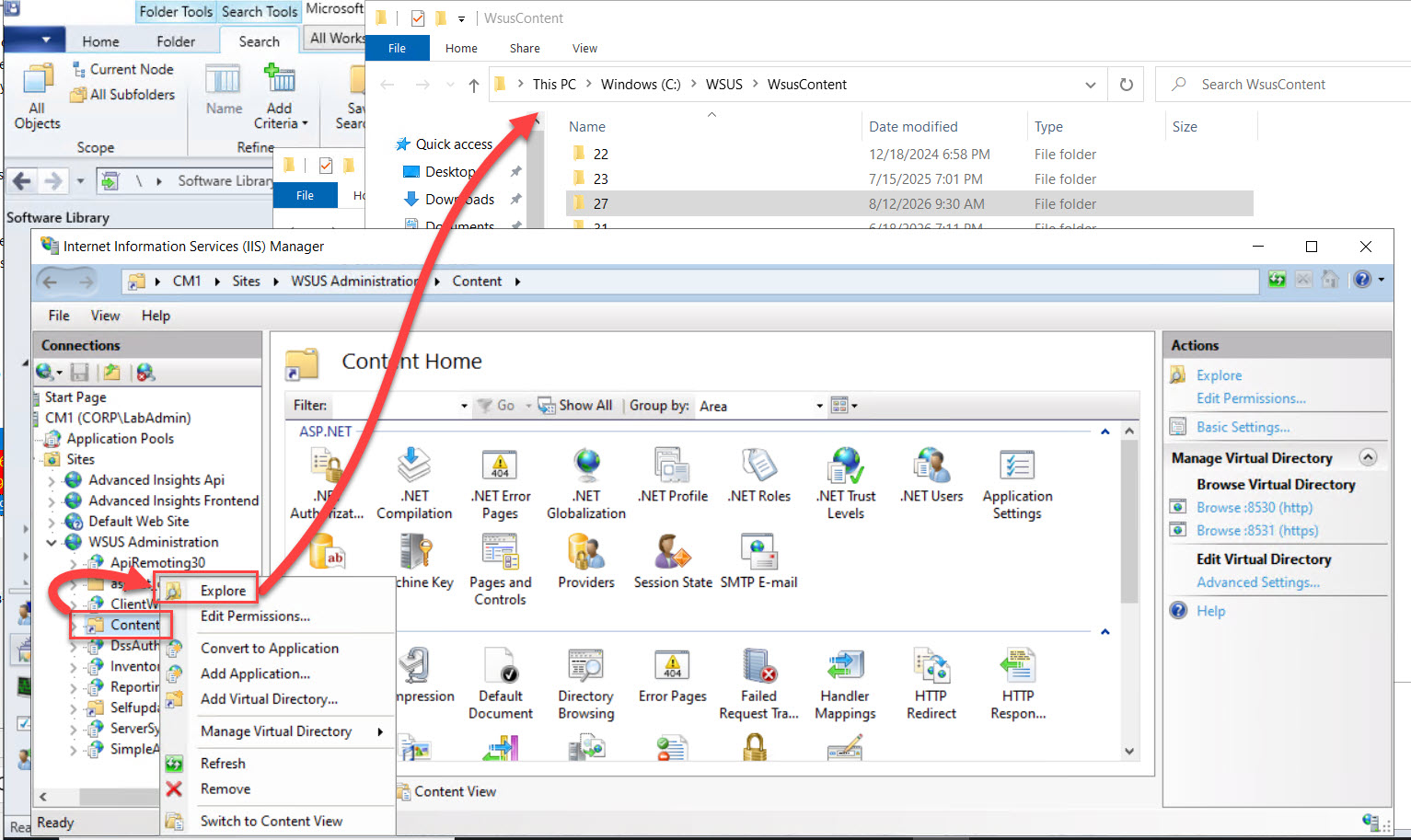
When a third-party update is published in WSUS (at least from Patch My PC, and likely from other third-party vendors as well), it publishes into the IIS / WSUS Administration / Content location:
The Device Downloads from the SUP, and It “Works”
Here’s the device downloading that update directly from the SUP:
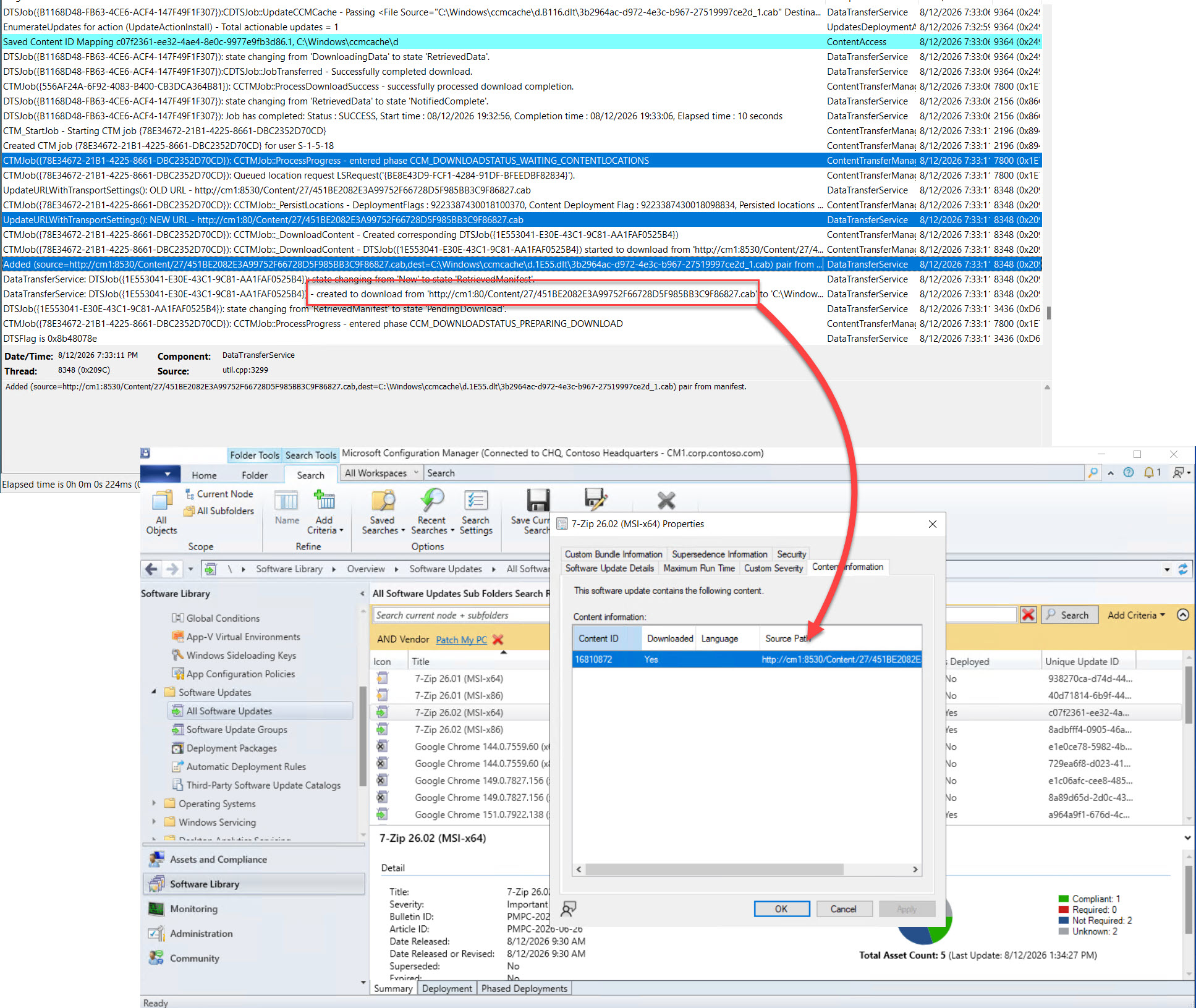
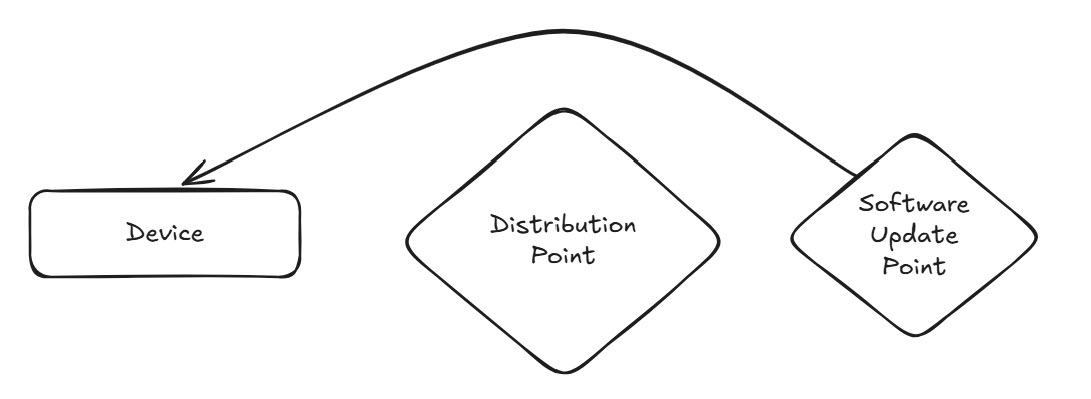
And it works! …which is actually not great.
Here’s what the current (incorrect) setup looks like:
Distributing the Content Correctly
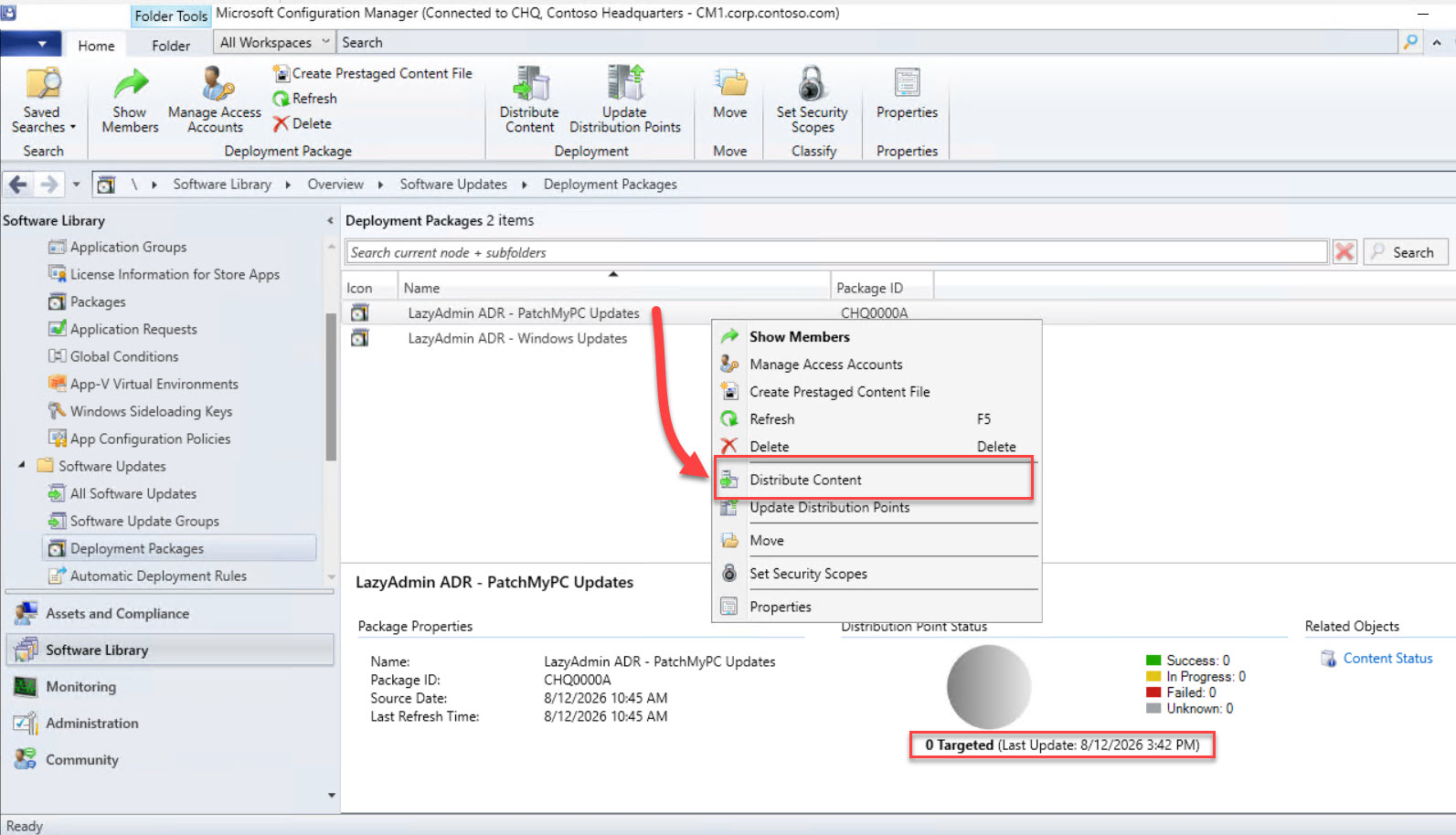
Now let’s distribute the content to the DP the right way:
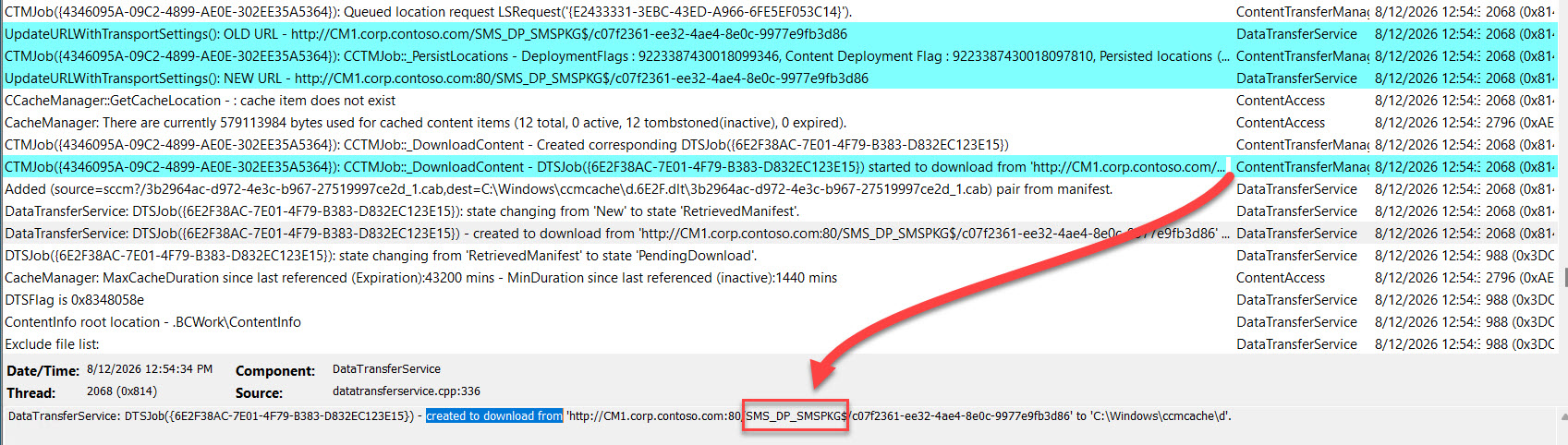
With the content properly distributed, we can see that same update now coming from the Distribution Point instead of the SUP:
The Correct Content Flow
With the setup configured correctly, the content flows like this:
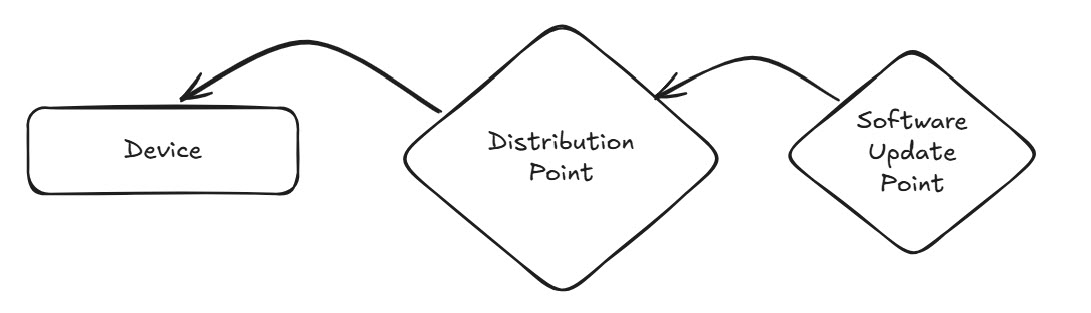
This may seem like a minor detail, but it can cause serious issues at scale. If you have only one Software Update Point but ten Distribution Points, every device will download content from the SUP when given the option, that’s a significant bottleneck waiting to happen.
If you enabled the option “If software updates are not available on distribution points in current, neighbor, or site boundary groups, download the content from Microsoft Update.” and distributed the content, most devices will prefer their DP, but this assumes your boundarys are setup correctly and there are no issues connecting to the DP. It’s best to leave this option turned off and distribute the content forcing your devices to grab the package from the DP.
Summary and Recommendation
The correct configuration is to disable the option “If software updates are not available on distribution points in current, neighbor, or site boundary groups, download the content from Microsoft Update.”
This option should never be enabled when you have third-party updates in your deployment. For first-party/Microsoft updates, however, it works great and can be left enabled.